¶ Revoke a Checkout and Review the Checkout Roster
The Checkout Roster lists the checkouts you are allowed to see: who is checked out on what, when, and by whom. Use it to answer "is this member checked out?", and to revoke a checkout when someone should no longer use a tool.
You only see checkouts for the tools you can approve. An approver assigned to one tool sees only that tool's checkouts, while a shop's Resource Manager sees the whole shop, and admins and board members see everything.
¶ Find a checkout
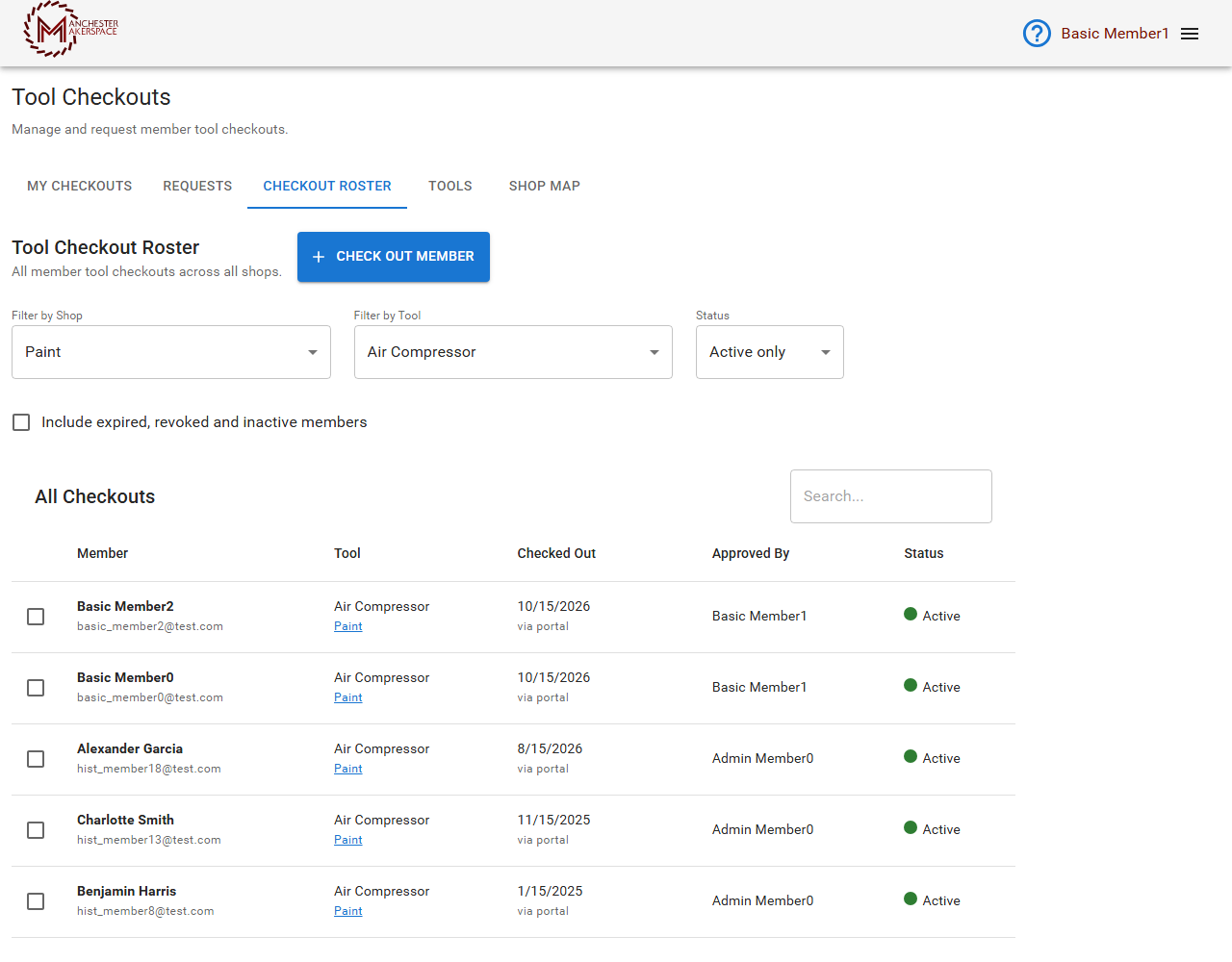
- Open Tool Checkouts > Checkout Roster. Approvers and Resource Managers land on this tab by default.
- Narrow the list with the filters at the top:
- Filter by Shop: choose a shop, or leave it on All Shops.
- Filter by Tool: shows Select a shop first until you pick a shop. Then it offers All Tools in Shop and each tool.
- Status: Active only (the default), Revoked only, Reinstated or All. Reinstated shows each reinstated pair: the new active checkout and the revoked one it replaced.
- Include expired, revoked and inactive members: unticked by default, so people whose membership has lapsed do not clutter the list. Tick it when you need to see them.
- Use the Search box above the table to find someone by name.
Each row shows the Member (name and email), the Tool and its shop, Checked Out (the date, and how it was signed off, for example via portal), Approved By, Status: a green Active or a red Revoked, and Notes.
¶ The Notes column
Notes explains each row, so you do not have to ask around:
- On a revoked row: the reason it was revoked, who revoked it and when.
- On a checkout that was reinstated: the reason it was reinstated, who reinstated it and when.
- On an ordinary row: the note the member typed on their checkout request, if they wrote one.
Notes are internal. They are shown only to approvers of that tool, Resource Managers of its shop, board members and admins. A member never sees them, not even on their own checkouts, and other members do not see them either.
¶ Reinstated checkouts
When a revoked checkout is reinstated, the revoked record is kept and a new active checkout is added. In the roster:
- The new checkout shows a green Active with a small Reinstated badge, and its Notes give the reinstatement reason.
- The old revoked row shows a grey Reinstated instead of a red Revoked, with a line pointing to the current checkout. Its Notes still show why it was revoked.
- The two rows sit together, with the active one on top.
- If the new checkout is later revoked, both rows show as Revoked again.
¶ Revoke a checkout
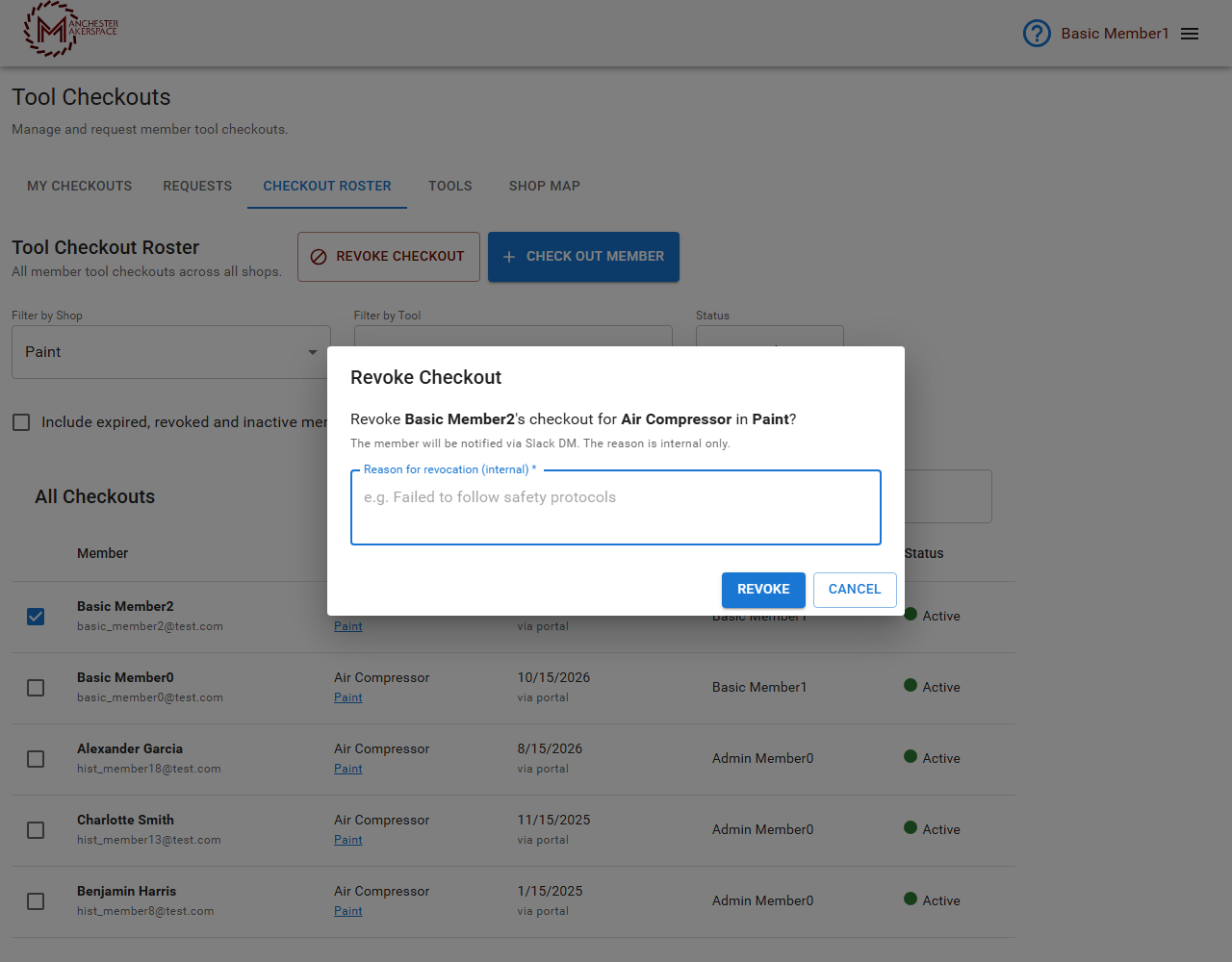
- Tick the box on the member's row. A Revoke Checkout button appears next to Check Out Member.
- Click Revoke Checkout. A box opens: Revoke (member)'s checkout for (tool) in (shop)? It reminds you that the member will be notified via Slack DM and that the reason is internal only.
- Type the Reason for revocation (internal). It is required.
- Click Revoke. Click Cancel to close the box without revoking.
The row leaves the Active only list. To see it again, set Status to Revoked only. It shows with a red Revoked status.
¶ What happens when you revoke
- The member receives a Slack message naming the tool and shop. It does not include your reason.
- They are removed from the tool's users channel, if it has one.
- The tool no longer appears under their My Checkouts, and it disappears from their Available Tools list, so they cannot ask for it again.
- If someone other than the original approver revokes it, the original approver is told, as long as they are still allowed to approve that tool.
- If the member was an approver for that tool, that assignment is removed.
- If the original approver earned the automatic volunteer credit for the checkout, the credit is reversed.
- The checkout stays in the roster as Revoked, so there is a permanent record.
A revoked checkout blocks a new one. The portal will not check the same member out on that tool again, and the member cannot request it. Only an admin or board member can lift this, with Reinstate Checkout (next section). Approvers and Resource Managers cannot, so contact the board.
¶ Reinstate a revoked checkout (admins and board)
Use this when a revoked member has retaken the safety session, or a checkout was revoked by mistake.
- Open Tool Checkouts > Checkout Roster, set Status to Revoked only (or All), and tick the red Revoked row. A row already marked Reinstated cannot be reinstated again.
- Click Reinstate Checkout. A box opens asking for a reason. The reason is required and internal only.
- Confirm. The member is checked out on the tool again, with the usual checkout message and users-channel invite.
The original revoked record stays in the roster, alongside the new active checkout, so the history is kept. The audit log records who reinstated it and why. Reinstating does not restore a tool-approver assignment the member lost when revoked: add it again if needed.
¶ When not to revoke
- You recorded the wrong member or tool by mistake. Tell the board or an admin rather than revoking, because revoking leaves a permanent revoked record that blocks the correct checkout until an admin or board member reinstates it.
- Membership has lapsed. You do not need to revoke. Lapsed members are hidden from the roster by default, and their checkouts are still there if they renew.
¶ See also
Last reviewed: October 2026