¶ Check Out a Member on a Tool
This is how an approver records that a member has completed a tool's checkout. It replaces the old "ask in the shop channel" request and the Google Drive checkout list.
¶ Who can do this
- Admins and board members, for any tool.
- The Resource Manager (RM) of a shop, for every tool in that shop.
- An approver assigned to a tool, a group of tools, or a whole shop. You can only check people out on what you are assigned. See Tool groups and approvers.
Members never see the Check Out buttons.
¶ From a phone (at the tool)
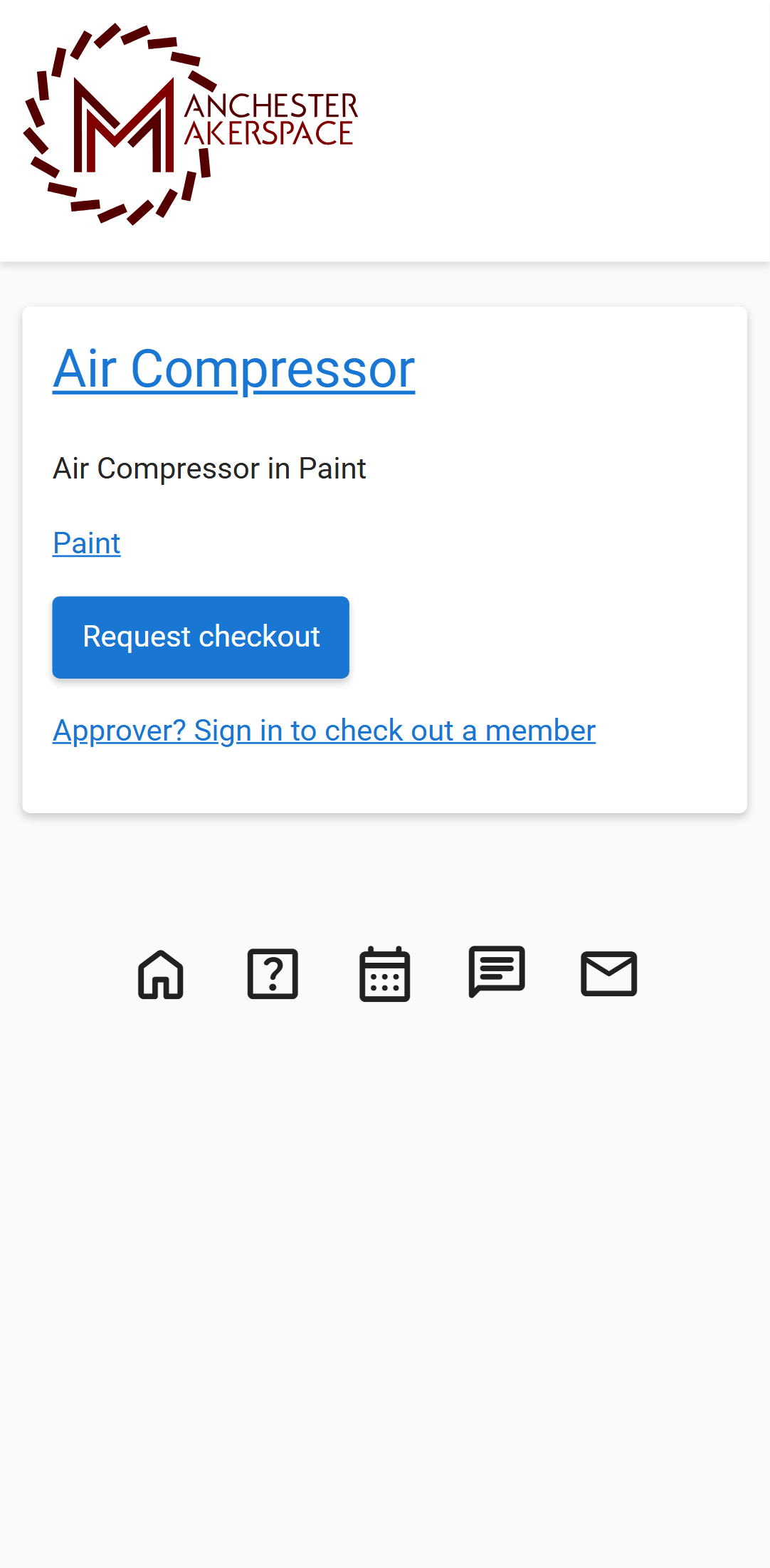
- Scan the Checkout Required sign on the tool. The tool's page opens, showing its name and shop, a Request checkout button, and below it a link: Approver? Sign in to check out a member.
- Tap Approver? Sign in to check out a member. Sign in if you are asked to. You land on the shop's page with a box titled Check out a member on (tool name) already open. If you are not allowed to check members out on that tool, the box does not open.
- Choose the member:
- Android: tap Scan member's fob and hold the member's fob against the back of the phone. The portal finds the member from the fob. You can also use the search box below it.
- iPhone: a phone cannot read fobs in the browser, so use the search box, Search by name or email. Type a few letters and pick the member from the list.
- A confirmation appears: Check (name) out on (tool)? Make sure this is the person in front of you. Make sure it is the person in front of you. If you scanned a fob, the screen also shows the member's status and their Membership through date, and if they cannot be checked out it says why and the Check Out button is disabled.
- Tap Check Out. You will see (name) is checked out on (tool). Tap Done.
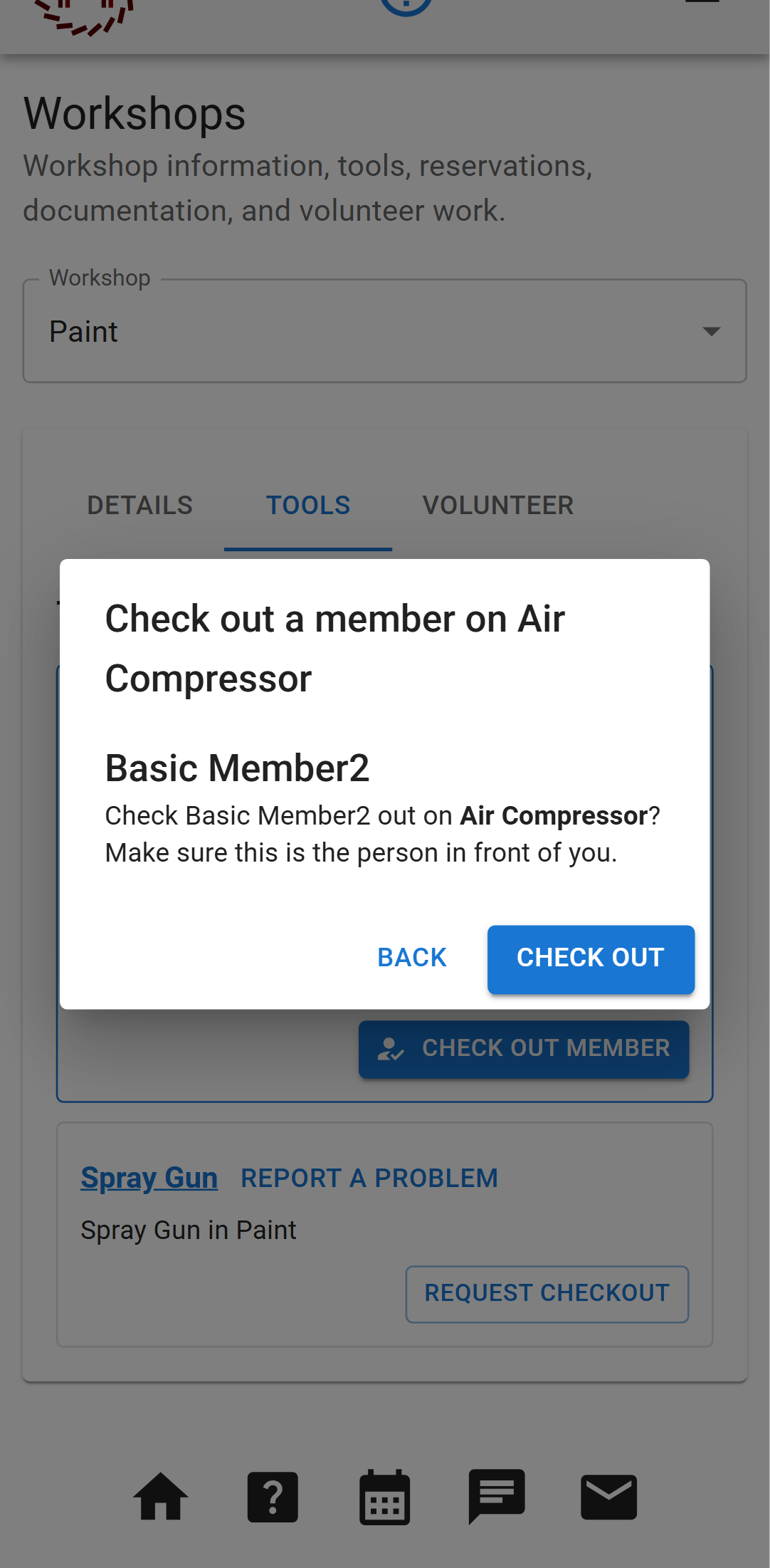
Scanning a fob only identifies the member. Nothing is recorded until you tap Check Out.
¶ Good to know about the search box
- It only lists members whose membership is active and not expired. If you cannot find someone, their membership has probably lapsed or is still pending, so check their profile or ask the board.
- When you pick someone from the search (not a fob scan), the portal checks eligibility when you press Check Out. If they cannot be checked out, a message appears in the box, for example A checkout record already exists for this tool. Tap Back to choose someone else.
¶ From a computer
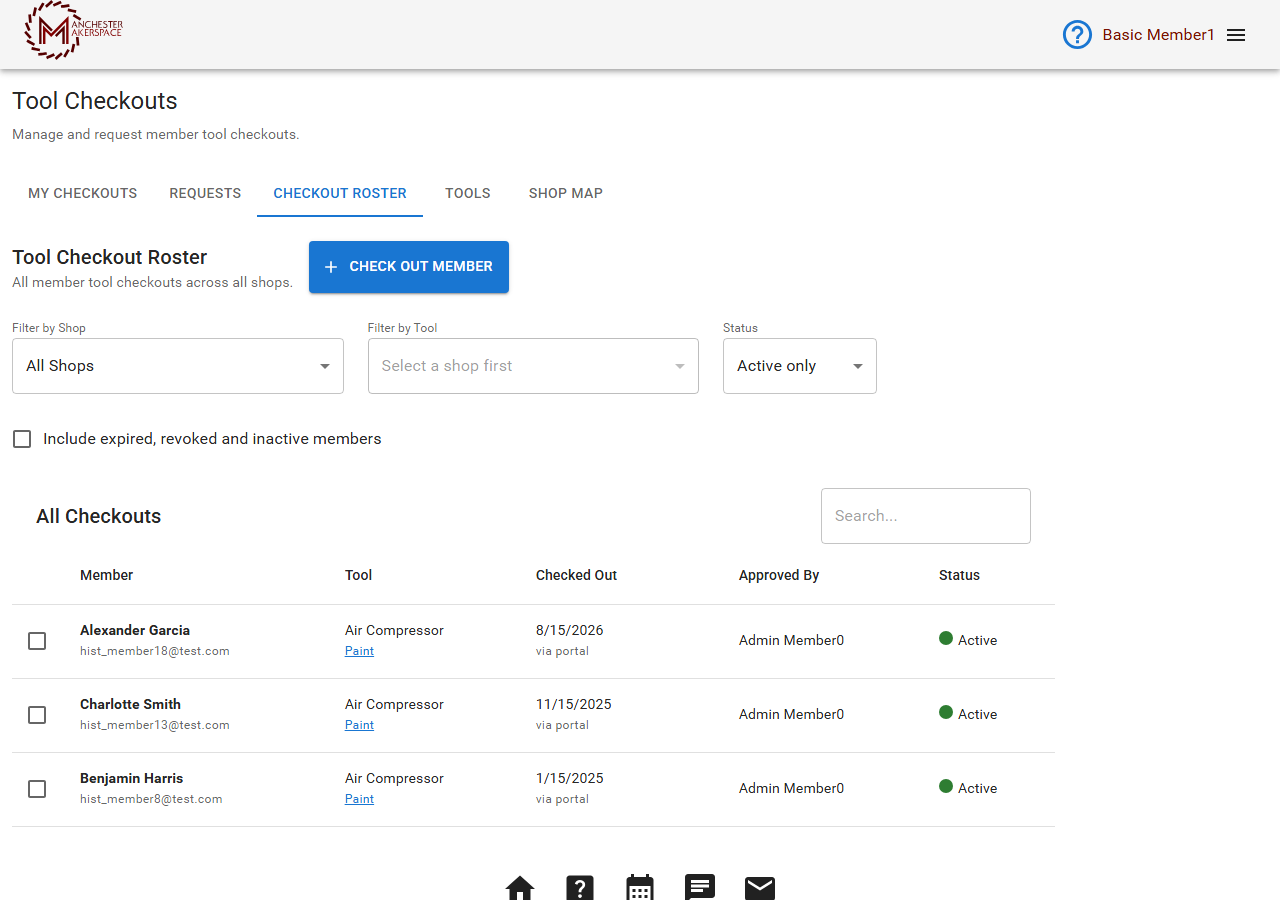
- Sign in to the member portal and open Tool Checkouts from the menu. As an approver you see the tabs My Checkouts, Requests, Checkout Roster, Tools and Shop Map, and the page opens on Checkout Roster.
- If the member has already asked for a checkout, open the Requests tab (titled Open Checkout Requests). Each row shows the tool and its shop, the member's name and email, their note, and the date requested. Tick the box on the request. Two buttons appear: Decline and Check Out Member. Click Check Out Member. The checkout is recorded at once (see the warning below).
- Otherwise, stay on Checkout Roster and click Check Out Member. A box titled Check Out Member on Tool opens:
- Member: type to search by name or email and pick the member.
- Shop: choose the shop.
- Tool: choose the tool. This list stays empty until a shop is chosen, and it only offers tools you can approve.
- Click Check Out. Click Cancel to close the box without recording anything.
There is no confirmation step on the Requests tab. Clicking Check Out Member on a request records the checkout straight away. The request simply disappears from the list, and the member now shows in the Checkout Roster as checked out "via portal". Check the member and tool on the row before you click.
You can also do this from a shop's page: open Workshops, pick the shop, find the tool, and use Check Out Member.
For a tool group (a set of related tools approved together), the portal shows a short review step first. You review the member against the group, then approve once.
¶ What the member sees and what else happens
- The member gets a Slack message naming the tool, the shop and you, plus any private tool notes (lock combination and similar), if their Slack account is linked.
- If the tool announces checkouts, a message is posted in its channel, and the member is added to the tool's users channel when it has one. If the automatic invitation fails, the message tells you to add them by hand.
- If the member had an open request for that tool, it closes automatically.
- If you are an approver assigned to the tool (not an admin, board member or RM), you also earn a small automatic volunteer credit for the checkout.
- Each checkout and each fob lookup is recorded in the audit log.
¶ If you checked out the wrong person
The portal has no undo. Do not revoke it yourself unless that is truly what you mean, because a revoked checkout stays on record and blocks a later correct one. Tell the board. See Revoke a checkout.
¶ Slack
You can also approve from Slack: /checkout > View open requests, or /checkout @member tool-name in the shop's channel. See the /checkout command.
¶ See also
¶ Renewal and expiration
An expired checkout can be requested and approved again when the member meets
the current prerequisites. Approval creates a new checkout and preserves the
previous one as superseded History. Approval and reinstatement use the tool’s
current Never/1–5-year policy, with dates valid through the displayed Eastern
calendar day. Expiration is separate from revocation; use the existing admin/board
reinstatement flow for unresolved revocations. Approver privileges alone do not
allow editing a checkout’s expiration date.
Last reviewed: October 2026