¶ Rent a Storage Space
You rent a tote, shelf or other storage space through the member portal. You can start from the QR code on the space, or from your own profile. Either way you pick the space, sign the rental agreement, and pay the invoice. Prices are shown in the member portal. For the rules about what storage is for and what is allowed, see Storage Rentals.
¶ Who can rent
You can rent a space if your membership is in good standing and you have no outstanding past-due invoices. If you owe a past-due balance, the portal asks you to pay it before you can request a rental.
Most rentals, such as storage totes, are self-service: you choose the space and the portal walks you through the rest. Some rentals need prior approval from the board. Those are marked Approval required in the portal, and are covered below.
Daily rentals, such as the auto bay and outside parking, are not rented this way. They are invoiced through shop fees, and are available after you contact the appropriate people under the shop's policy. See Storage Rentals. Floor and large plots also need approval, and not all of them are set up in the portal, so contact the board first.
¶ Rent from the QR code (the quickest way)
Every rental space has a label with a QR code on it.
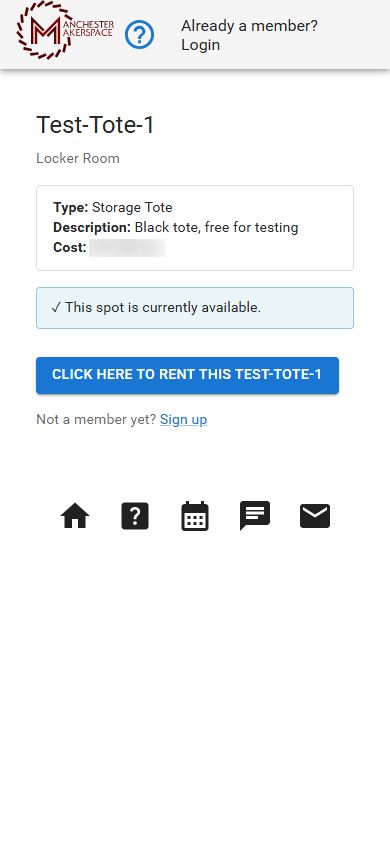
- Scan the QR code with your phone's camera. The space's page opens. It shows the space, its location, its type, its cost, and whether it is currently available.
- Tap Click here to rent this (followed by the space number). If you are not signed in, the portal asks you to sign in first, and brings you back to the same space afterward. If you are not a member yet, use Sign up on that page.
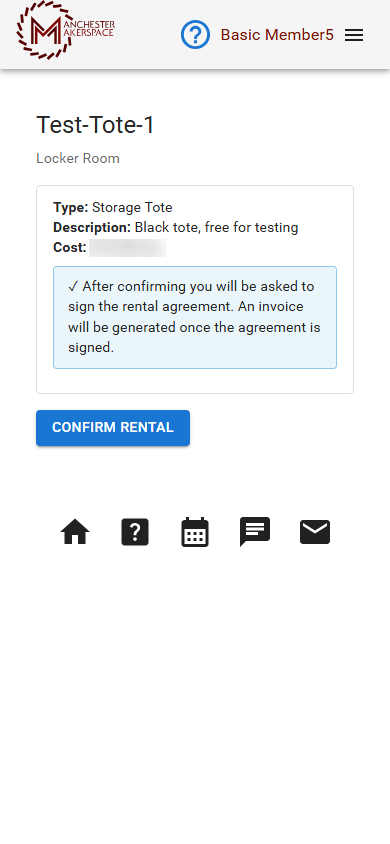
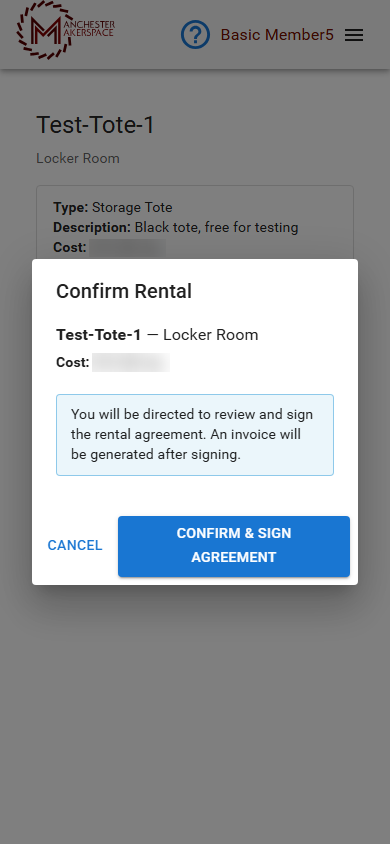
- Tap Confirm Rental. A box asks you to confirm, and tells you that you will sign the rental agreement next and that an invoice is created after you sign. Tap Confirm & Sign Agreement.
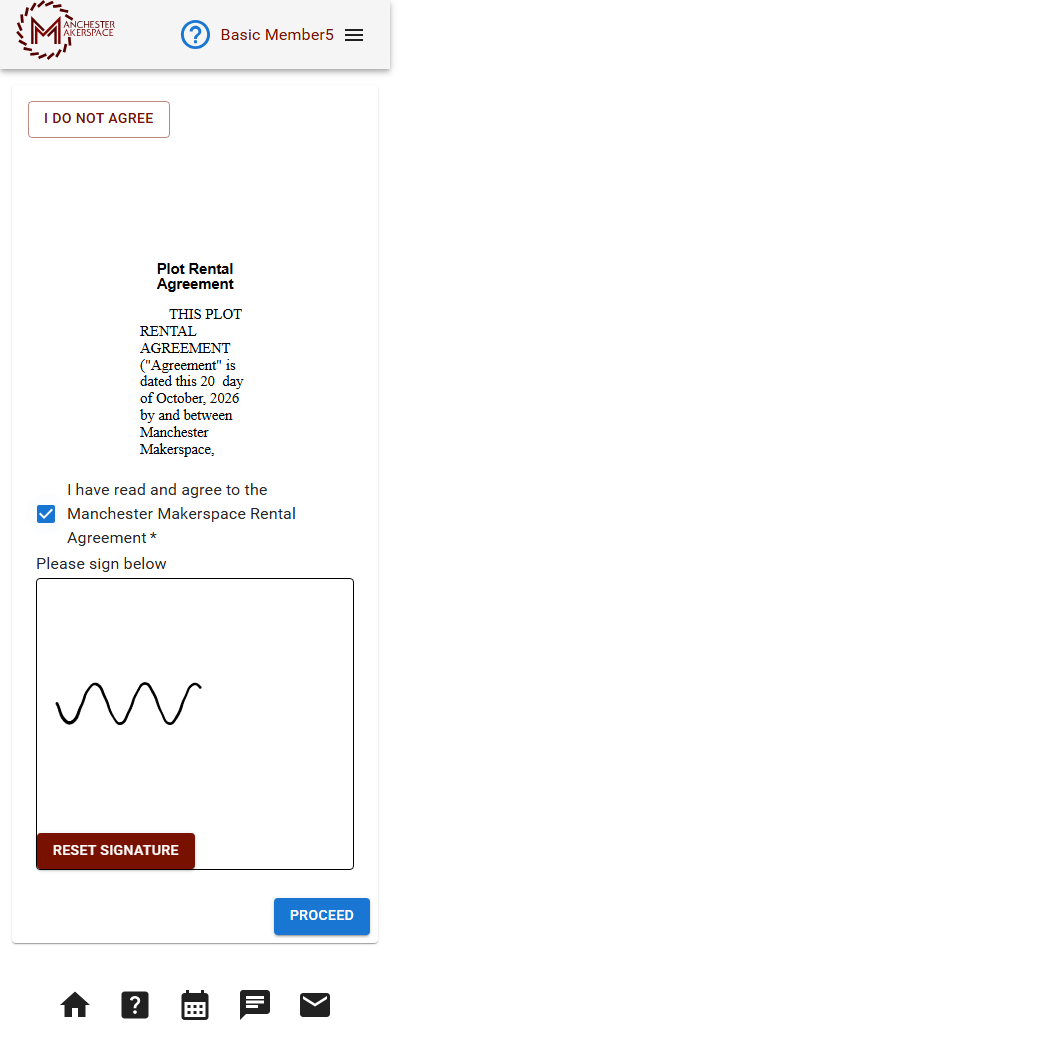
- Read the rental agreement, tick I have read and agree to the Manchester Makerspace Rental Agreement, sign in the box with your finger, and tap Proceed. Tap Reset Signature if you want to start the signature again.
- The portal takes you to the Dues tab on your profile, where the rental invoice is waiting. Pay it as described below.
If the page says the space is currently unavailable, someone else has it. Use Click here to pick an available rental to choose another.
¶ Rent from the member portal
Use this if you did not scan a code, or want to browse what is available.
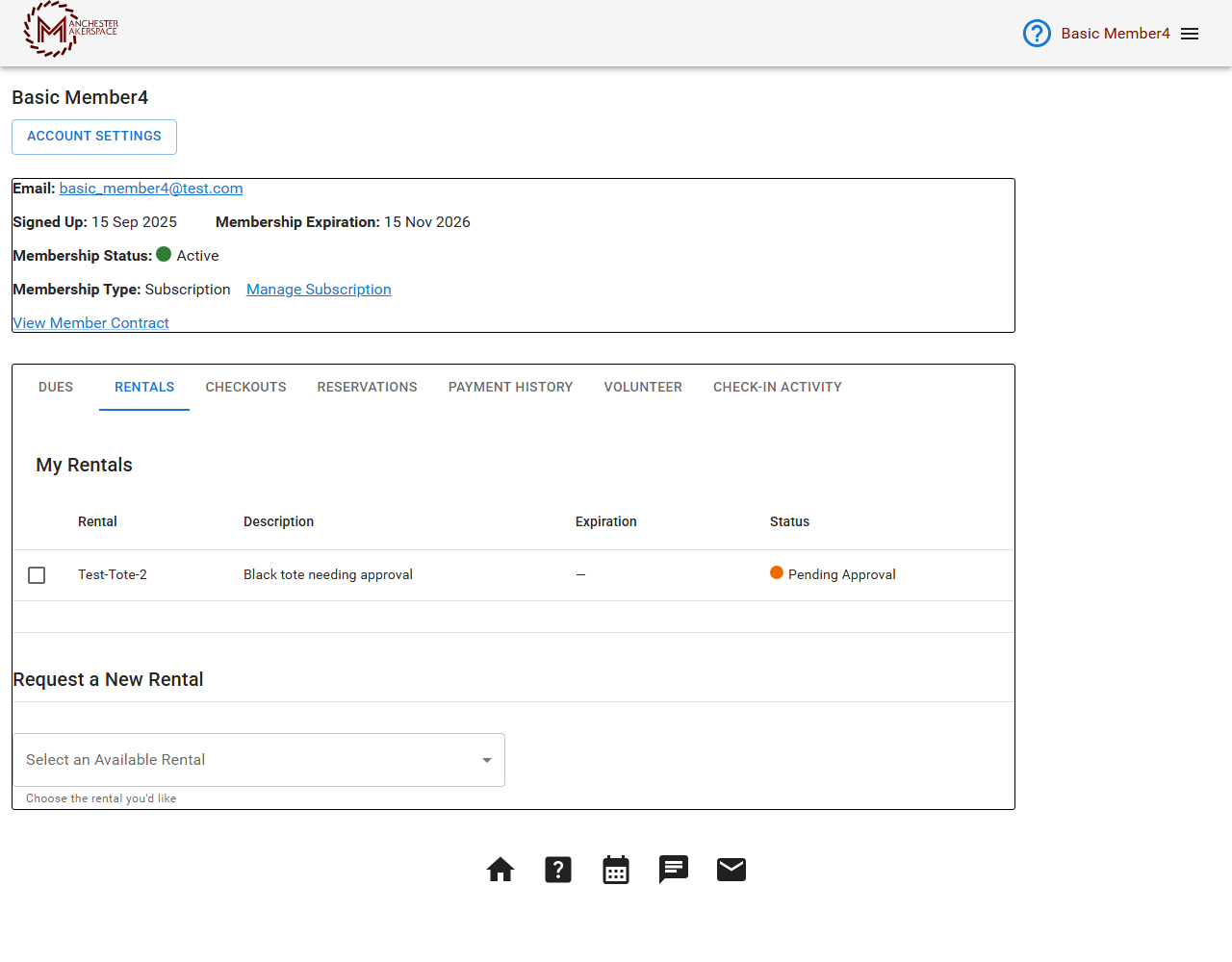
- Sign in and open your profile (My Profile), then open the Rentals tab. My Rentals lists your current rentals and their status.
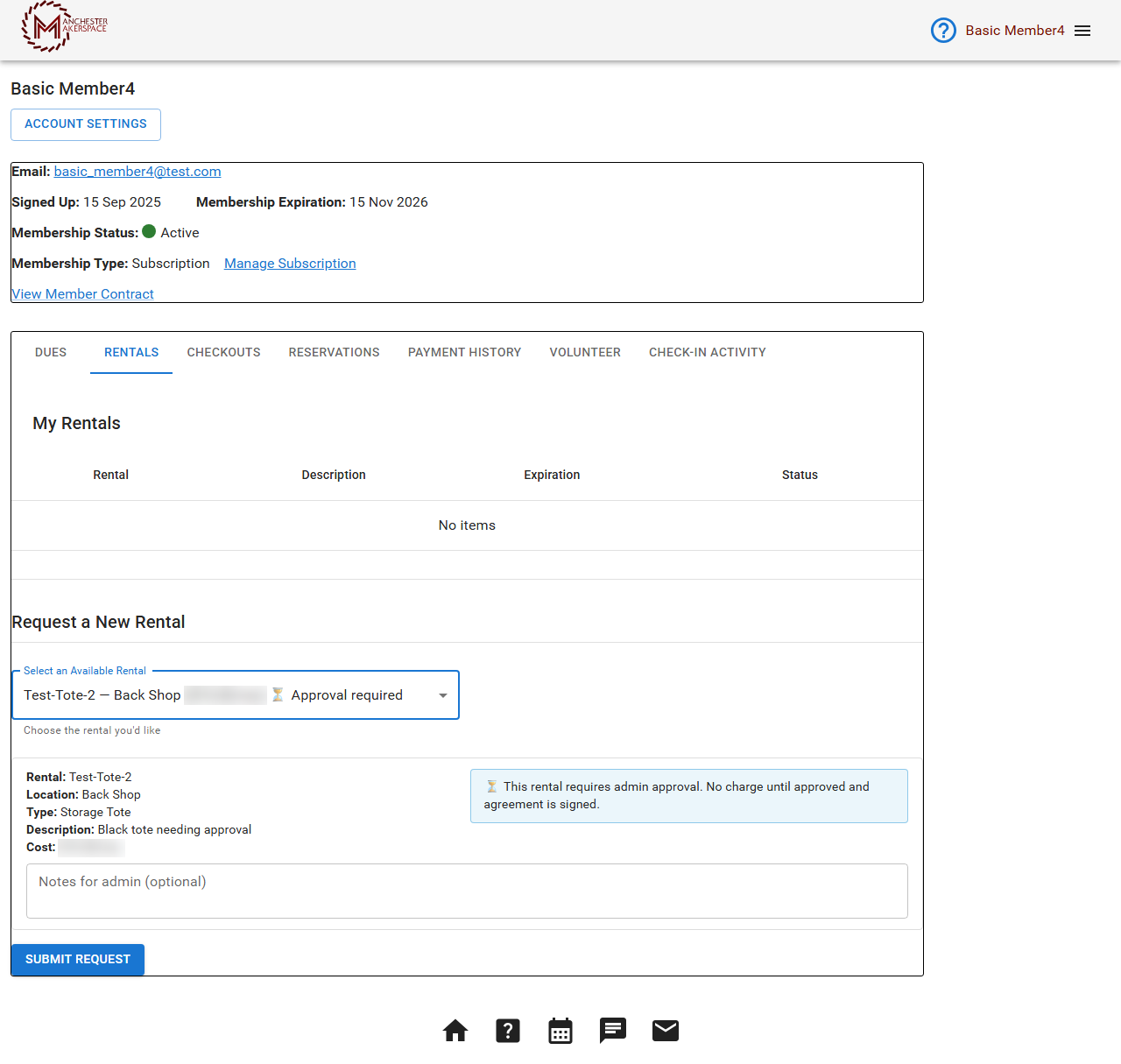
- Under Request a New Rental, open Select an Available Rental and choose a space. The list shows only spaces that are available, grouped by type, and marks the ones that need approval.
- Check the space's details: rental, location, type, description and cost.
- For a self-service space, click Confirm Rental, then Confirm & Sign Agreement, and continue as in steps 4 and 5 above.
- For a space that needs approval, you can add a note for the board in Notes for admin (optional), then click Submit Request and confirm. See the next section.
¶ Rentals that need approval
When you request a rental that needs approval, nothing is charged yet. The request shows as Pending Approval in My Rentals. The board is notified in Slack and by email, and you get a confirmation by Slack (if your Slack account is linked) and email.
When the board approves it, you are notified, the rental becomes Pending Agreement, and you sign the rental agreement. Open the Dues tab on your profile; a banner says Please complete your Rental Agreement, with a Review Documents button. Sign it, and pay the invoice as below. If the board denies the request, you get an email with their reason. A denied request does not block you from requesting something else.
¶ Pay the rental invoice
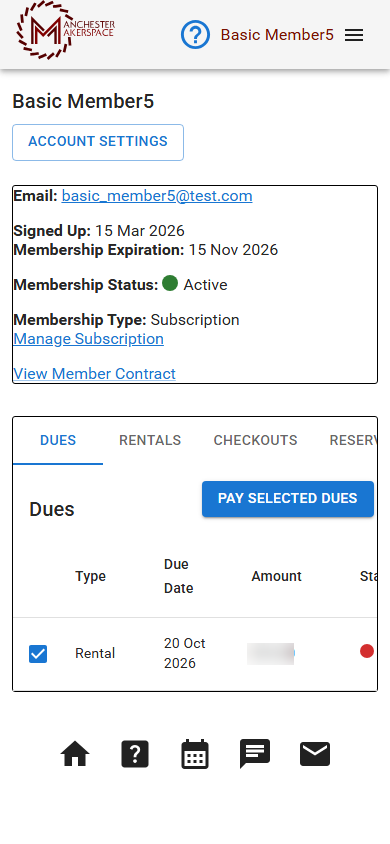
After you sign the agreement, the invoice appears in the Dues tab on your profile.
- Tick the rental invoice and click Pay Selected Dues.
- Choose a payment method, or use Add New Payment Method to add a card, PayPal or Venmo. Click Next.
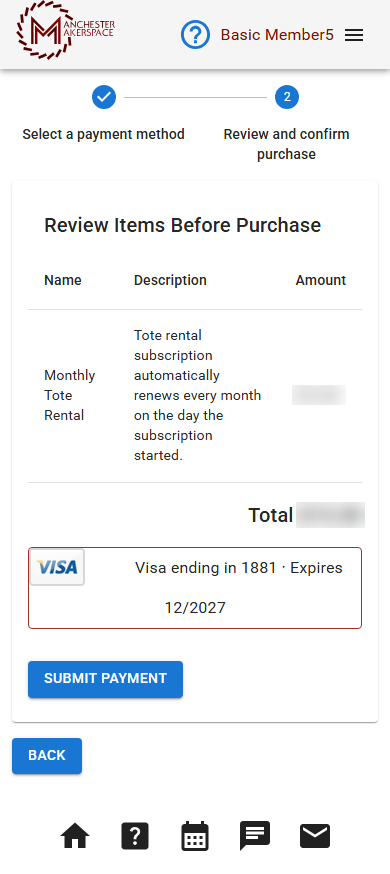
- Review the items and total, then click Submit Payment.
Rentals that are subscriptions renew automatically on the subscription schedule selected when you set up the rental. The review screen shows the plan and describes how it renews, so read it before you pay. You can see past payments under Payment History and manage payment methods in your account settings.
¶ Statuses you may see in My Rentals
| Status | What it means |
|---|---|
| Pending Approval | The board has your request and has not decided yet. |
| Pending Agreement | You still need to sign the rental agreement. Open the Dues tab and use Review Documents. |
| Active | The space is yours. |
| Vacating | You asked to end the rental but chose to keep it until the end of the paid period. |
| Cancelled | The rental has ended. |
| Denied | The board did not approve the request. |
¶ End a rental
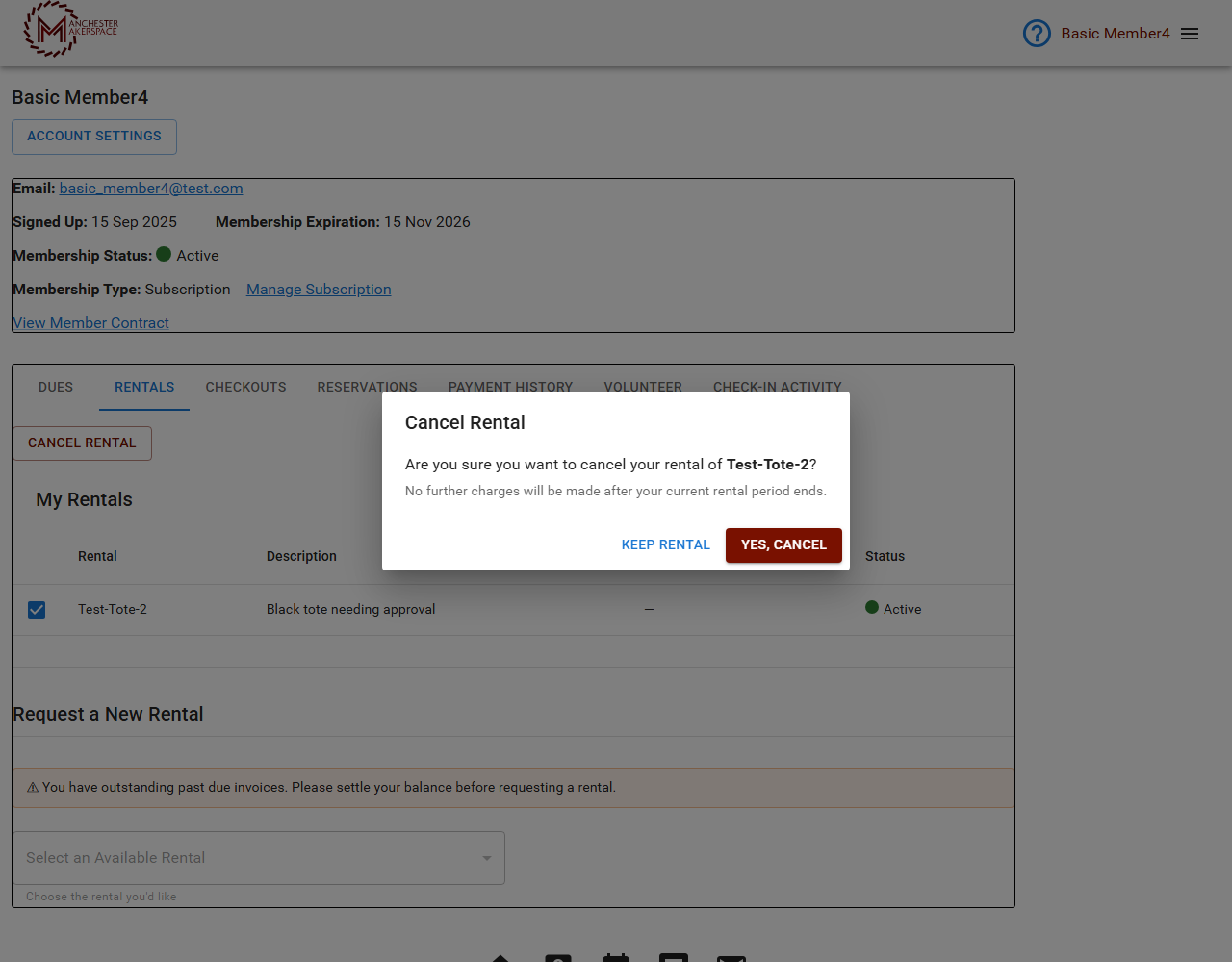
- Open your profile, then the Rentals tab, and tick the rental.
- Click Cancel Rental, read the message, and click Yes, Cancel. Click Keep Rental to change your mind.
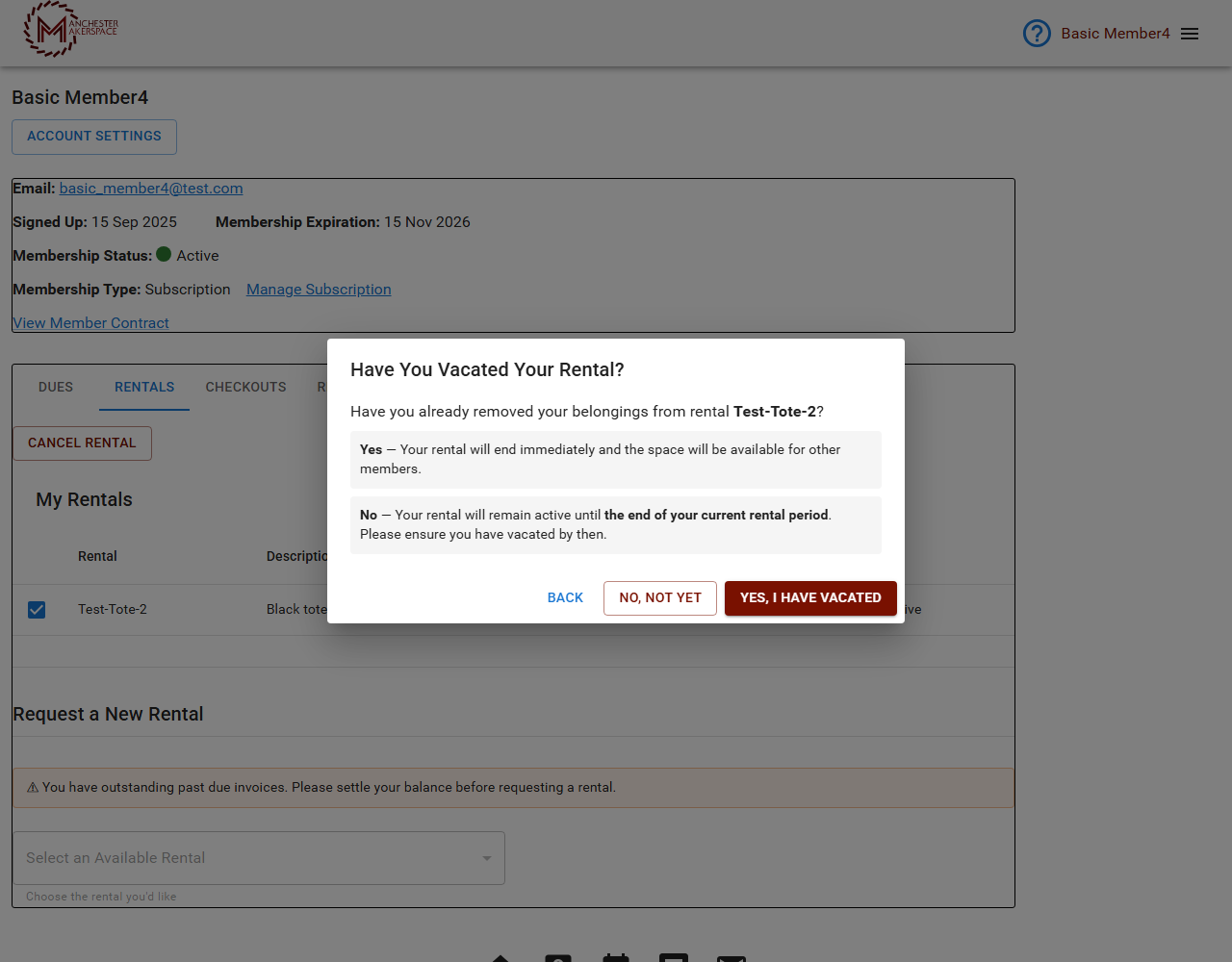
- The portal asks Have You Vacated Your Rental?
- Yes, I Have Vacated ends the rental immediately and frees the space for other members.
- No, Not Yet keeps the rental until the end of your current paid period and stops the next charge. The rental shows as Vacating. When you have emptied the space, tick it and click Mark Vacated, then Yes, I Have Vacated.
Please empty the space before the rental ends.
¶ If something goes wrong
| What you see | What to do |
|---|---|
| You have outstanding past due invoices. Please settle your balance before requesting a rental. | Pay what you owe in the Dues tab, then request the rental again. |
| Your membership is not active. Please renew before requesting a rental. | Renew your membership first. |
| This rental is not currently available. or the page says the spot is unavailable | Someone else has it. Pick a different space. |
| Please complete your Rental Agreement | You have a rental waiting for your signature. Click Review Documents and sign. |
| The QR code opens a not found page | The space may have been removed or renumbered. Tell the board in #discuss-talk-to-the-board. |
| A request is taking a long time | Approval-required requests are decided by the board. Ask in #discuss-talk-to-the-board. |
¶ See also
- Storage Rentals for what storage is for, and the carry-in, carry-out policy.
- Making payments