¶ Checkout Requests, Reminders and Notifications
When a member asks for a checkout, the portal tells the right people without flooding anyone. This page explains where requests show up, how to decline one, what you will receive in Slack, and what happens if nobody acts.
¶ Where to see open requests
- Portal: open Tool Checkouts > Requests. The list is titled Open Checkout Requests. Each row shows the tool and its shop, the member's name and email, their note, and the date requested.
- Slack:
/checkout> View open requests.
You only see requests for tools you are allowed to approve. A request from a member whose membership has expired, is inactive, revoked or suspended, or who is missing a prerequisite, is left out until that is fixed.
¶ What you can do with a request
Tick the box on a request. Two buttons appear:
- Check Out Member records the checkout and closes the request. This happens at once, with no confirmation. See Check out a member.
- Decline closes the request without a checkout.
¶ Decline a request
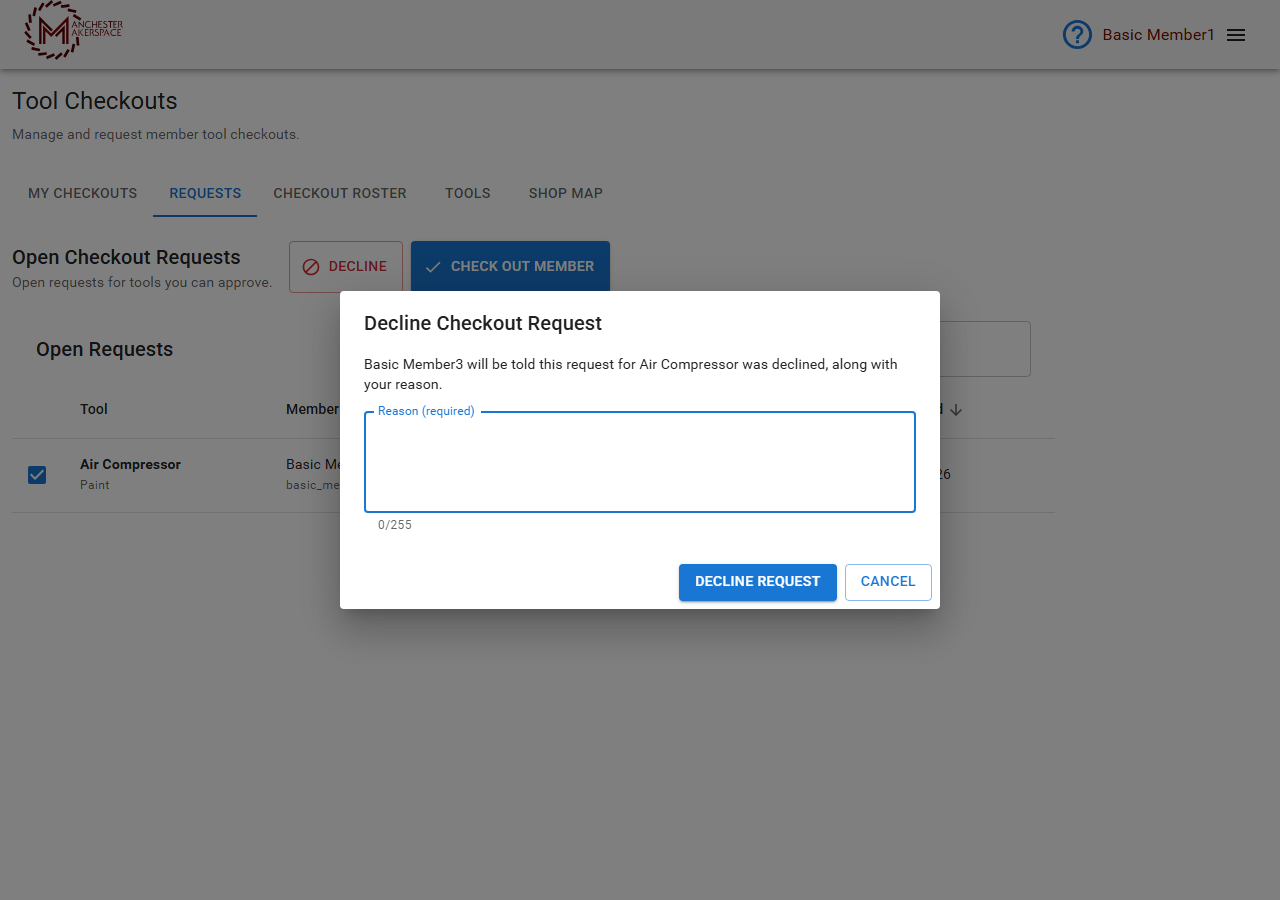
- Tick the request and click Decline.
- A box titled Decline Checkout Request opens. It says who will be told, for example Basic Member3 will be told this request for Air Compressor was declined, along with your reason.
- Type a Reason. It is required (up to 255 characters). If you leave it empty, the box says Enter a reason for declining.
- Click Decline Request. Click Cancel to close the box without declining.
The member receives your reason in Slack, so say what they need to do next, for example "Please finish the Paint shop orientation first, then ask again." The request disappears from the list, and the member can submit a new request for the same tool whenever they are ready. A decline never blocks them.
Already checked this person out in person? Record it with Check Out Member (or approve in Slack). The request closes by itself and stops appearing in reminders.
¶ What you will receive in Slack
- A daily summary. Each resource manager, and each approver assigned to the tool, its shop or its group, gets one message listing every open request they can act on, grouped by member with how many days each has waited. It goes out once a day in the morning (it runs at 14:30 UTC, which is mid-morning Eastern).
- You get at most one a day, and only when there is a new request since your last summary, or when an open request is exactly 5, 10, 15 (and so on) days old. With nothing new and no milestone, you get nothing.
- Each new summary replaces the previous one with a short "Replaced by a newer digest" note, so only one stays active.
- Admins and board members are only included if they also hold one of the roles above. Members without a linked Slack account are skipped, and there is no email backup.
- A channel announcement. If the tool has request announcements turned on, a message appears in the tool's channel when a request is made, or in the shop's channel if the tool has none of its own.
- Reminders in the Resource Managers channel. A request still open after 5 days, then again at 10 and 15 days, is posted there. The third is marked as the last reminder and says when the request will close.
An example of the daily summary (names and tools are examples):
Open checkout requests (5)

Pat Member
  • Laguna Bandsaw (Woodworking) – 12 days old
  • CNC Plasma Cutter (Metalworking) – 3 days old
Lee Davis
  • Lathe (Metalworking) – 1 day old

use /checkout → View open requests, or use the Member Portal
Already did one in person? Record it (Approve in Slack, or Check Out Member in the portal) so it stops showing up.
¶ If nobody acts
If no checkout is recorded 20 days after the request, the system declines it automatically. The member is told by Slack, with the suggestion to contact the board or visit an open house to see a board member in person, or to submit a new request. The channel posts and reminders are updated to say it timed out. The automatic decline is recorded in the audit log.
¶ What members receive
| When | Who | What |
|---|---|---|
| Request made | Member | A confirmation, plus the shop's note for requesters if there is one |
| Checked out | Member | Tool, shop and approver, plus any private tool notes; added to the tool's users channel |
| Declined | Member | Your reason |
| Timed out | Member | The automatic-decline message above |
| Checkout revoked | Member | A message naming the tool and shop (never the internal reason) |
These messages go to members with a linked Slack account whose notifications are on. The portal does not email them.
¶ Settings behind this
Request announcements, the announcement channel, the users channel and the shop's note for requesters are set on the tool and shop. The Resource Managers channel used for reminders is set in Portal Settings. See Tools and shops.
¶ See also
Last reviewed: October 2026