¶ Reserve a Shop or Tool
You can reserve a whole shop, or one or more tools, so you have it when you need it. You reserve in the member portal, or with /reserve in the shop's Slack channel. Not every shop or tool can be reserved. If a shop does not appear on the form, it is not reservable.
¶ Before you start
- You need an active membership that has not expired.
- For each tool you reserve, you need to be checked out on it. If you are not, see Request a Tool Checkout. A shop may also require checkouts on certain tools before you can reserve the whole shop.
- Fees, if a shop or tool charges one, are shown in the portal before you confirm. This page does not list prices.
¶ Reserve in the portal
- Sign in and choose Reservations from the portal menu.
- On the New Reservation tab, type a Title. It is required, and it is what other people see.
- Choose the Shop. The list shows only shops that can be reserved.
- Under Resource, choose Entire shop, or one or more tools (or tool groups). The list shows the tools you can reserve.
- Choose the Start date and Start time. Enter the time in 24-hour form (for example 14:30), or add AM or PM. Times are in 30-minute steps.
- Set the Duration with the box or the slider. The form shows the Computed end and the Maximum available duration.
- Check the Day Agenda on the right to see what is already booked that day.
- Choose Reserve.
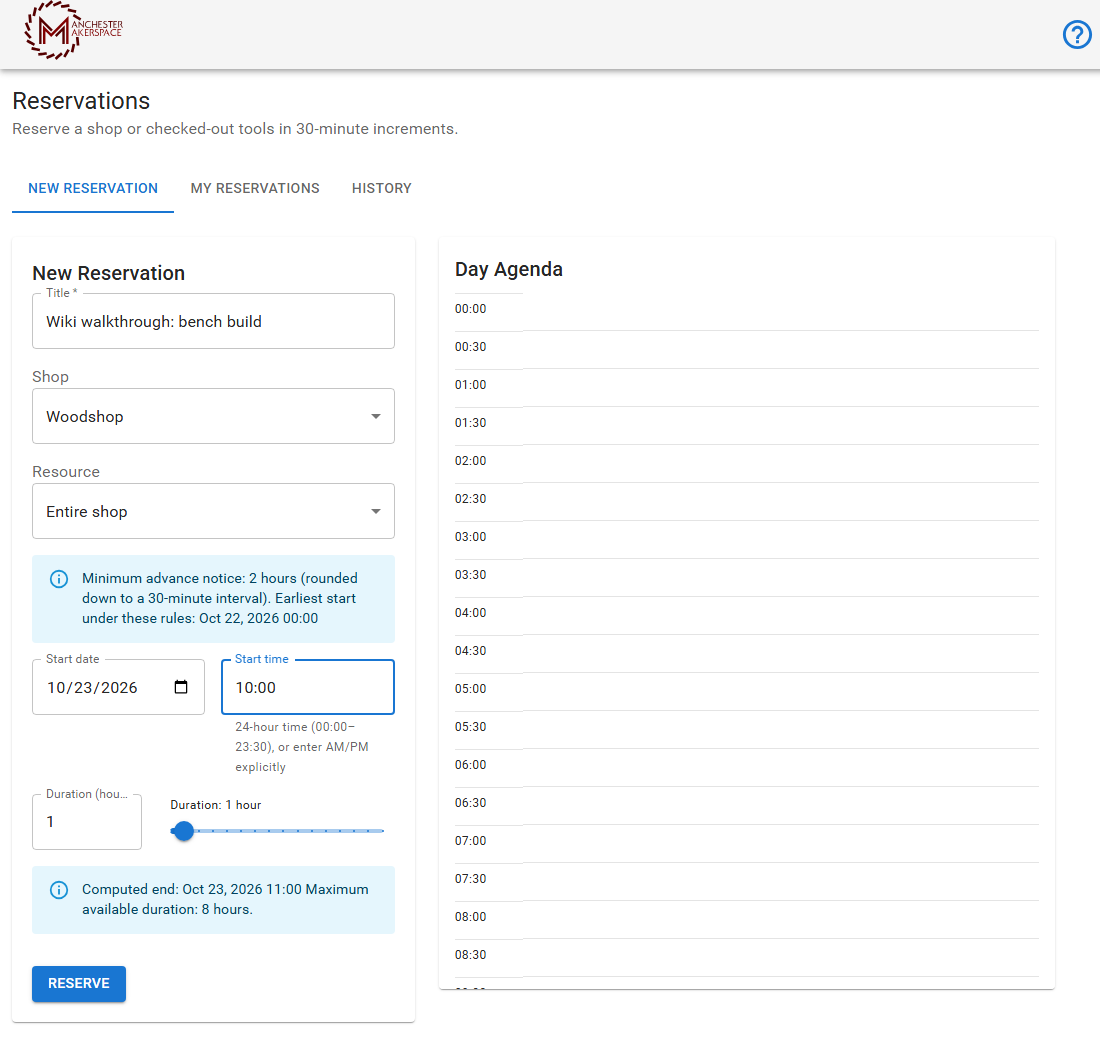
The form tells you what to expect before you submit. For example, a blue message shows the minimum notice and the earliest start allowed, and a warning appears if your booking needs approval or if something is missing.
¶ The rules
Each shop and tool sets its own limits. These are the usual defaults:
- Times are in 30-minute steps, and the end is not included in the booking.
- You must book at least 2 hours ahead.
- You can book up to 7 days ahead.
- A booking can last up to 8 hours.
- Bookings do not repeat. Make a new one for each time you need it.
- Only so many people can book the same shop or tool at once, usually one. Booking the whole shop blocks booking its tools at the same time, and booking a tool blocks booking the whole shop.
- If you do not have an automatic subscription, a booking cannot run past your membership expiration date.
The form always shows the real limits for your choice, such as the earliest start and the maximum duration.
¶ After you reserve
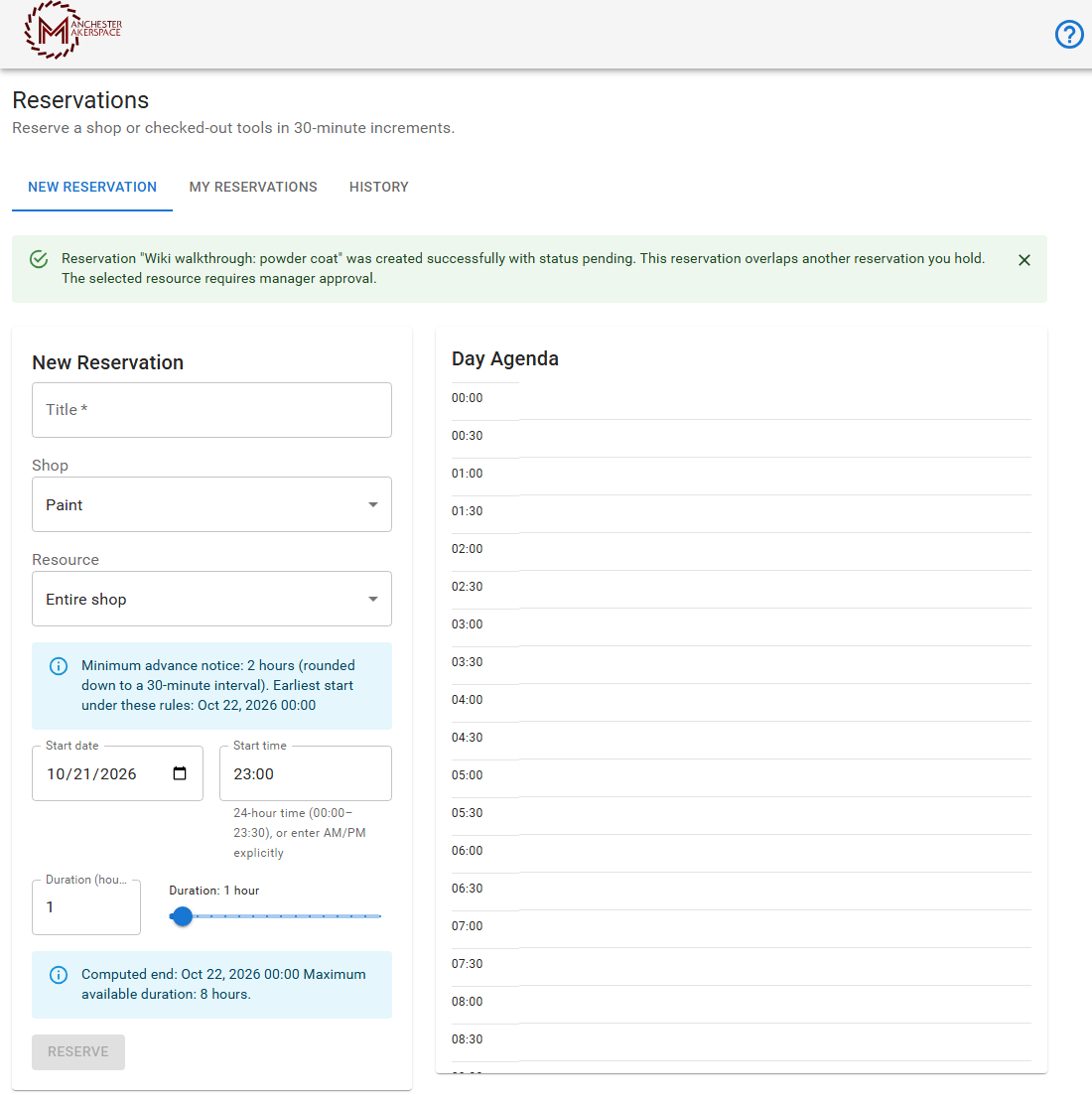
You see a green message at the top: Reservation "…" was created successfully with status ….
| Status | What it means |
|---|---|
| approved | It is confirmed. The time is yours. |
| pending | A Resource Manager, admin or board member must approve it first. The message tells you why. The time is held for you while it waits. |
| unpaid | It is waiting for the reservation fee to be paid. |
| denied | It was not approved. The time is free again. |
| cancelled | It was cancelled. The time is free again. |
A booking is pending when the shop or tool requires approval, when it falls in a recurring blackout period, or when it overlaps another reservation you already hold. When it is approved or denied, you get a Slack message if your Slack account is linked.
¶ Fees
Some shops and tools charge by the hour or by the day. When a fee applies, the form shows it, and asks you to confirm twice: the first time you choose Reserve it shows the fee, and the second time you confirm and save. The portal then creates an invoice you pay in your Dues tab. See Making Payments. Reservations with a fee cannot be made from Slack. Use the portal.
¶ See and change your reservations
Open the My Reservations tab. Your bookings are grouped as Upcoming, Pending Approval and Cancelled. Choose Edit to change a booking, or Cancel to cancel it. A change can send an approved booking back to pending. Past bookings are on the History tab.
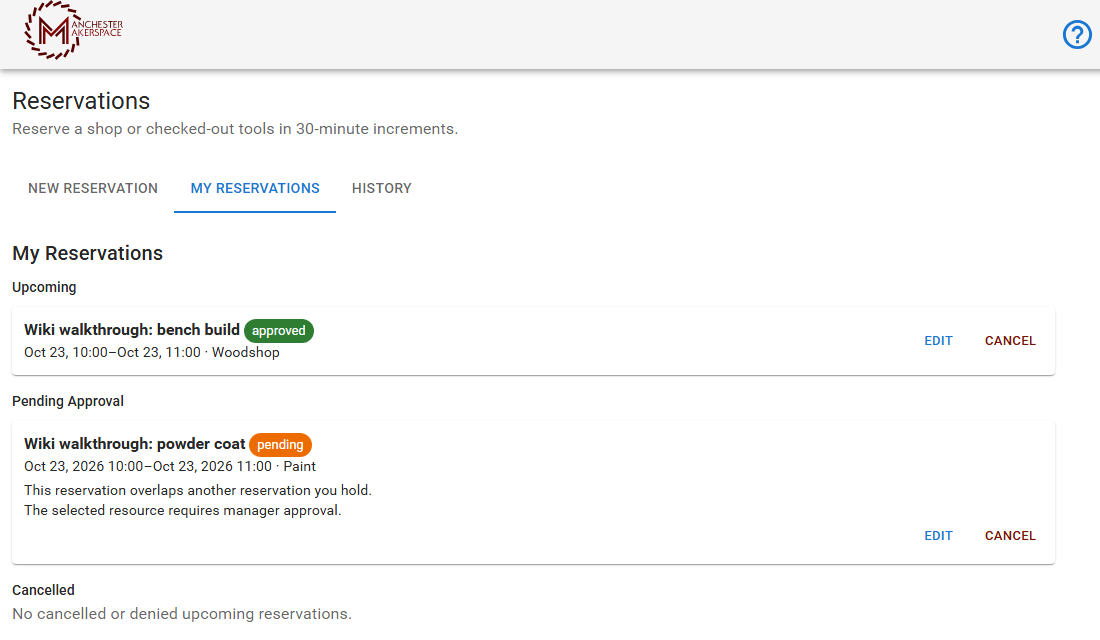
Please cancel a booking you will not use so someone else can have the time. If your membership expires or is revoked, new and edited bookings are not allowed, but you can still see and cancel the ones you have.
¶ Reserve from Slack
- In the shop's Slack channel, type /reserve. It only works in a channel that is linked to a shop.
- A box opens. Fill in the title, choose the whole shop or tools, and set the date, start time and duration.
- Submit. Problems appear in the box so you can fix them. When it works you get a message that says whether the booking is approved, pending or unpaid.
Slack sends a reminder before an approved booking. If it starts 6 to 47 hours away you are reminded 30 minutes before. If it starts more than 47 hours away you are reminded 8 hours before. Reservations starting in under 6 hours get no reminder.
Some shops show "Today's reservations" and "Tomorrow's reservations" in their Slack channel so you can see who has the shop. Ask the Resource Manager if you want that for your shop.
¶ If something goes wrong
| What you see | What to do |
|---|---|
| The shop is not in the list | It is not reservable. Ask the shop's Resource Manager. |
| A tool is missing from the Resource list | You may not be checked out on it. See Request a Tool Checkout. |
| The Reserve button is greyed out | A required field is missing, or the time or duration is not allowed. Read the messages on the form. |
| It says approval is required | It is pending. Wait for a decision, or ask in the shop's Slack channel. |
| The time is taken | Look at the Day Agenda and pick another time. |
| Your membership has expired | Renew first. See Manage Membership. |
More help: Troubleshooting.
Last reviewed: October 2026