¶ Manage Fix Tickets
Members report problems as fix tickets. See Report a Problem for what they see. Admins and board members can work on every ticket. Resource Managers (RMs) can work on tickets for the shops they manage. People who are assigned a ticket are kept informed and may be able to work on it.
Open Fix Tickets from the portal menu. The list shows every ticket you may read. The filters let you narrow it by shop, priority, status, category, confirmation, tool and assignee. Open a ticket to work on it.
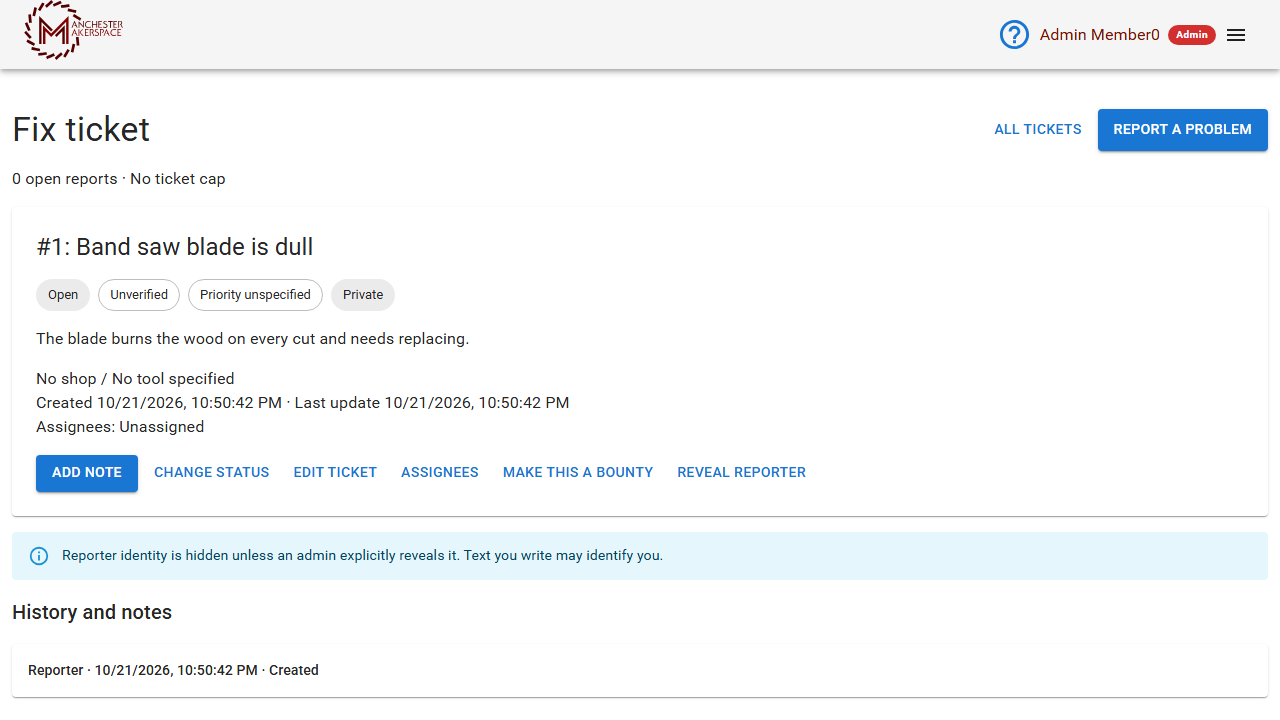
¶ What you can do on a ticket
| Button | What it does |
|---|---|
| Add Note | Adds a note to the history. At least two characters. |
| Change Status | Sets the status and the confirmation. |
| Edit Ticket | Changes the title, description, category, shop, tool and visibility. |
| Assignees | Assigns active members to the ticket. |
| Make this a bounty | Publishes the ticket as a volunteer bounty. |
| Reveal Reporter | Admins only. Shows who reported it. |
¶ Change status
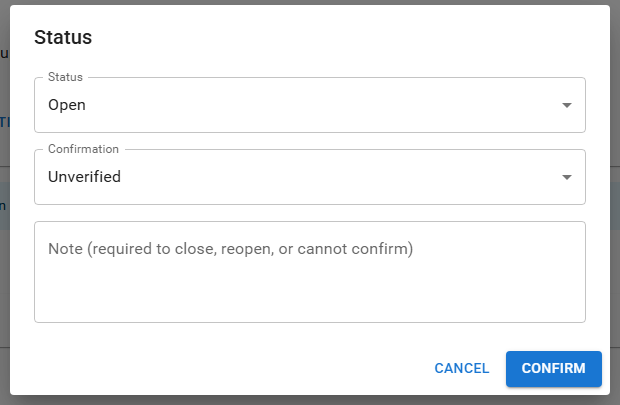
Choose a Status: Open, In progress, Waiting for parts, Resolved or Rejected. Choose the Confirmation: Unverified, Confirmed or Could not confirm. A note is required to close or reopen a ticket, and when you choose Could not confirm. The people involved are told by Slack message.
Closing a ticket (resolved, rejected or withdrawn) does not put a tool back in service. If you marked a tool out of service because of a ticket, use Mark out of service on the tool to change it. See Add and Manage Tools and Shops.
¶ Edit a ticket
Edit Ticket also lets you make the ticket Public (read-only). Doing that shows the full ticket and its existing notes to current members, so read it first. You can also tick Announce to shop/tool Slack channel and add a short announcement note, if the shop or tool has a channel.
¶ Assign people
Assignees searches active members. Assigned people get updates about the ticket.
¶ Make a ticket a bounty
Use this when a ticket is a job a volunteer could do.
- Choose Make this a bounty.
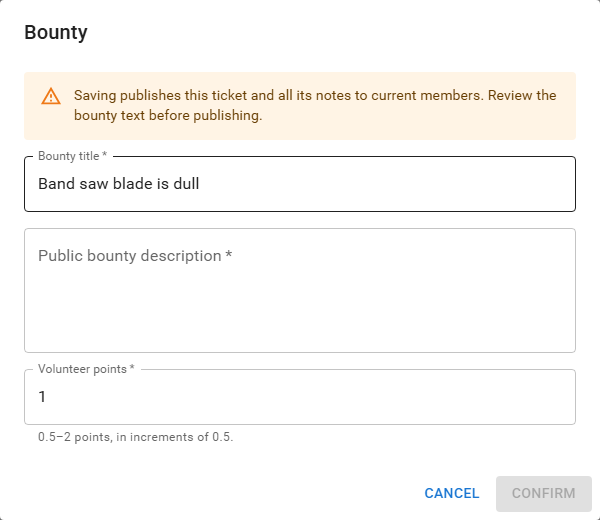
- Edit the Bounty title, write a Public bounty description, and set the Volunteer points. Points go from 0.5 to 2 in steps of 0.5.
- Choose Confirm.
Saving publishes the ticket and all its notes to current members, so review the text first. The ticket stays public while its bounty is active. A member claims and completes the bounty like any other volunteer task, and the reporter cannot claim their own. Withdrawing the ticket cancels an unclaimed bounty.
¶ Reporter privacy
Reporters are anonymous unless they chose Show my identity. Admins can use Reveal Reporter, which asks you to confirm that you have a legitimate administrative need. The access is recorded in the audit log. Do not reveal a reporter unless you must, and do not repeat what you learn.
¶ Settings (admins)
- Open ticket limit per reporter and the maximum bounty points (default 2) are set in Portal Settings.
- Ticket updates are sent to members and assignees as Slack messages. An optional central Slack channel for ticket announcements is set on the Slack tab of Portal Settings. Full notes are visible to everyone in that channel, so test the channel before you turn it on.
¶ Troubleshooting
| Problem | What to check |
|---|---|
| You cannot see a ticket | You may not manage that shop, and it is private or not assigned to you. Ask an admin or board member. |
| A button is missing | Some buttons are only for admins (Reveal Reporter) or for people who manage the shop. |
| A member cannot report | They may have reached the open-ticket limit. |
| The bounty is not in the task list | It may already be claimed, or the member is the reporter, or does not meet the prerequisites. |
| Slack messages are not arriving | The member may have no linked Slack account, or the central channel is not set. |
Last reviewed: October 2026