¶ Manage Reservations
Resource Managers (RMs) manage reservations for their own shops. Admins and board members manage every shop. This page covers the extra screens you get, how to set a shop or tool up so it can be reserved, and how to approve requests. For what members do, see Reserve a Shop or Tool.
¶ The extra tabs
On the Reservations page you see more tabs than members do:
| Tab | What it is for |
|---|---|
| New Reservation | Also offers Create on behalf of another member. |
| In My Shops | The approval queue and every upcoming and cancelled booking in the shops you manage. |
| Reservation Blackouts | Recurring times when bookings need approval. |
| Manage Shops | The shop list, with each shop's reservation settings. |
| Manage Tools | The tool list, with each tool's reservation settings. |
¶ Set up a shop or tool for reservations
A shop or tool can be reserved only after you turn it on.
- Open Manage Shops (or Manage Tools) on the Reservations page. You can also use Tool Checkouts, then Shops or Tools.
- Tick the shop or tool and choose Edit.
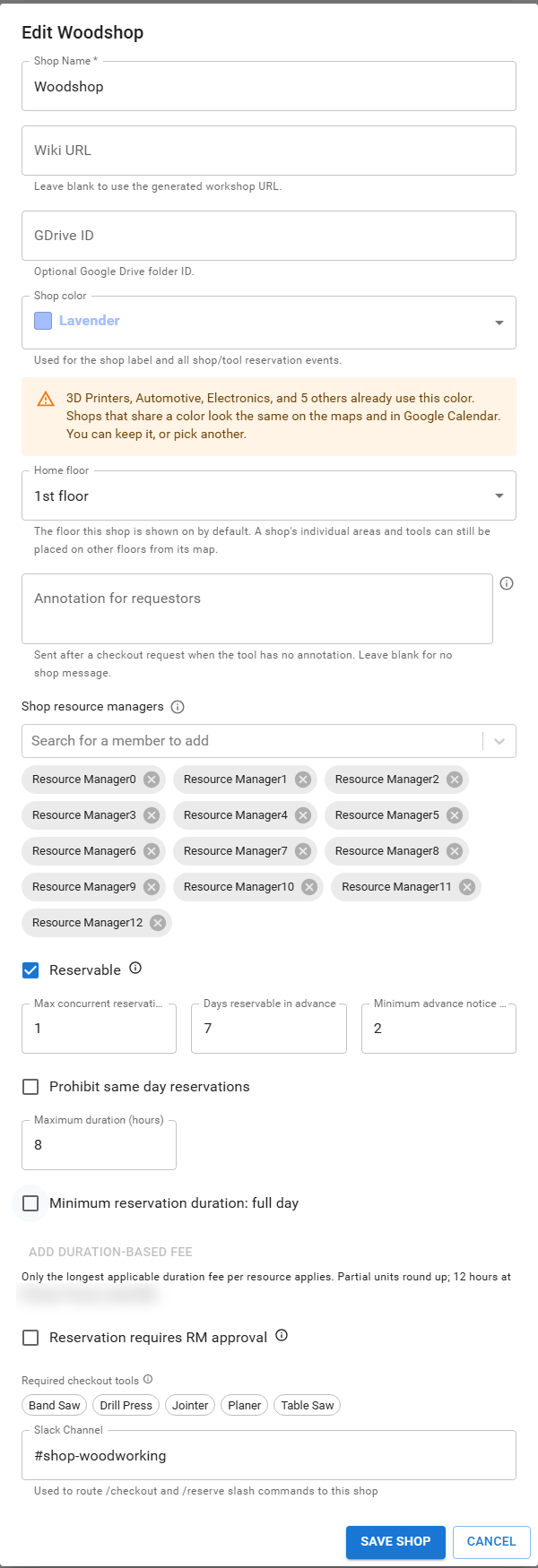
- Tick Reservable. More settings appear.
- Set them, then choose Save Shop or Save Tool.
| Setting | What it does | Usual default |
|---|---|---|
| Max concurrent reservations | How many bookings can overlap. | 1 |
| Days reservable in advance | How far ahead members can book. | 7 |
| Minimum advance notice (hours) | How far ahead a booking must start. | 2 |
| Prohibit same day reservations | Blocks bookings that start today. | Off |
| Maximum duration (hours) | The longest booking, in half hours. | 8 |
| Minimum reservation duration: full day | Makes bookings whole days, in date steps. | Off |
| Add duration-based fee | Charges for longer bookings, using an item from Shop Fees. Only the longest applicable fee per resource applies, and partial units round up. | None |
| Reservation requires RM approval | New bookings wait for approval. | Off |
| Required checkout tools | The checkouts a member needs to reserve. A tool always requires a checkout on itself. | None for a shop |
The Slack Channel on a shop is how /reserve finds the shop. Set it as in Add and Manage Tools and Shops. Tools can also be set to Mark out of service, which blocks new reservations for them.
Settings changes affect new and edited bookings. They do not cancel bookings that already exist. You cannot delete a shop or tool that has future bookings.
¶ Approve or deny requests
Open In My Shops. Pending Approval lists bookings waiting on you, with the reason each one needs approval.
- Approve confirms it at once. It moves to Upcoming Reservations.
- Deny rejects it.
- Edit and Cancel change or remove a booking.
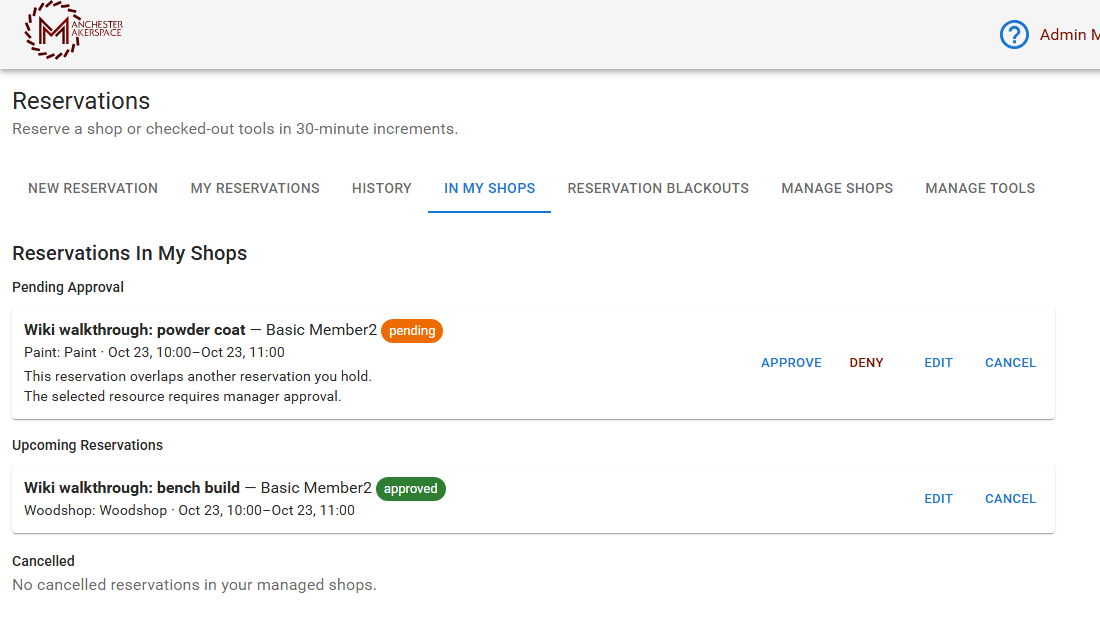
The member is told the result by Slack message. You cannot approve your own reservation. A reservation also needs approval when it overlaps one the member already holds, or falls in a blackout.
¶ Reservation blackouts
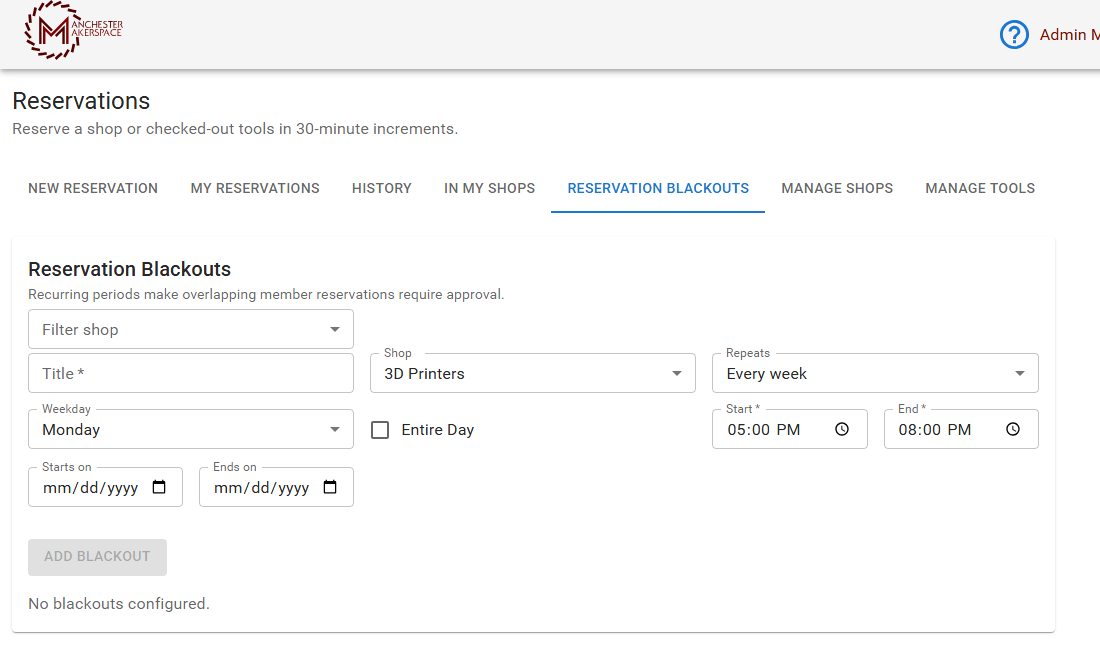
Use Reservation Blackouts for recurring times that should not be freely booked, such as a class or maintenance window. A booking that overlaps a blackout does not get blocked. It becomes pending, so you decide.
Fill in a Title, the Shop, how it Repeats (for example every week), the Weekday, the Start and End times or Entire Day, and optional Starts on and Ends on dates. Choose Add Blackout.
¶ Slack and calendar
- /reserve works in each shop's linked Slack channel.
- The portal keeps two read-only canvases per shop, Today's … Reservations and Tomorrow's … Reservations. A channel manager adds each one to the channel header once, with the + button in Slack. After that they update on their own.
- Reservation events are shown on the shop's Google Calendar, in the shop's color.
- If the canvases look out of date, an admin can rebuild them: open Portal Settings, choose Jobs, find Reservation Canvas Rebuild, and choose Run Now.
¶ Troubleshooting
| Problem | What to check |
|---|---|
| A shop is missing from members' list | Reservable is not ticked, or the shop is hidden. |
| A tool is missing from a member's list | The member is not checked out on it, or the tool is not reservable or is out of service. |
| Everything needs approval | Reservation requires RM approval is on, or a blackout covers that time. |
| Members cannot book far enough ahead | Raise Days reservable in advance. |
| /reserve says there is no shop for the channel | The shop's Slack Channel is empty or wrong. |
| The Slack canvas is stale | Run Reservation Canvas Rebuild. |
Last reviewed: October 2026