¶ The Member Portal Home Page and Menu
When you sign in to the member portal at members.manchestermakerspace.org, you land on the Home page. It shows where your membership stands and what you can do next. Everything else is in the menu at the top right.
¶ The Home page
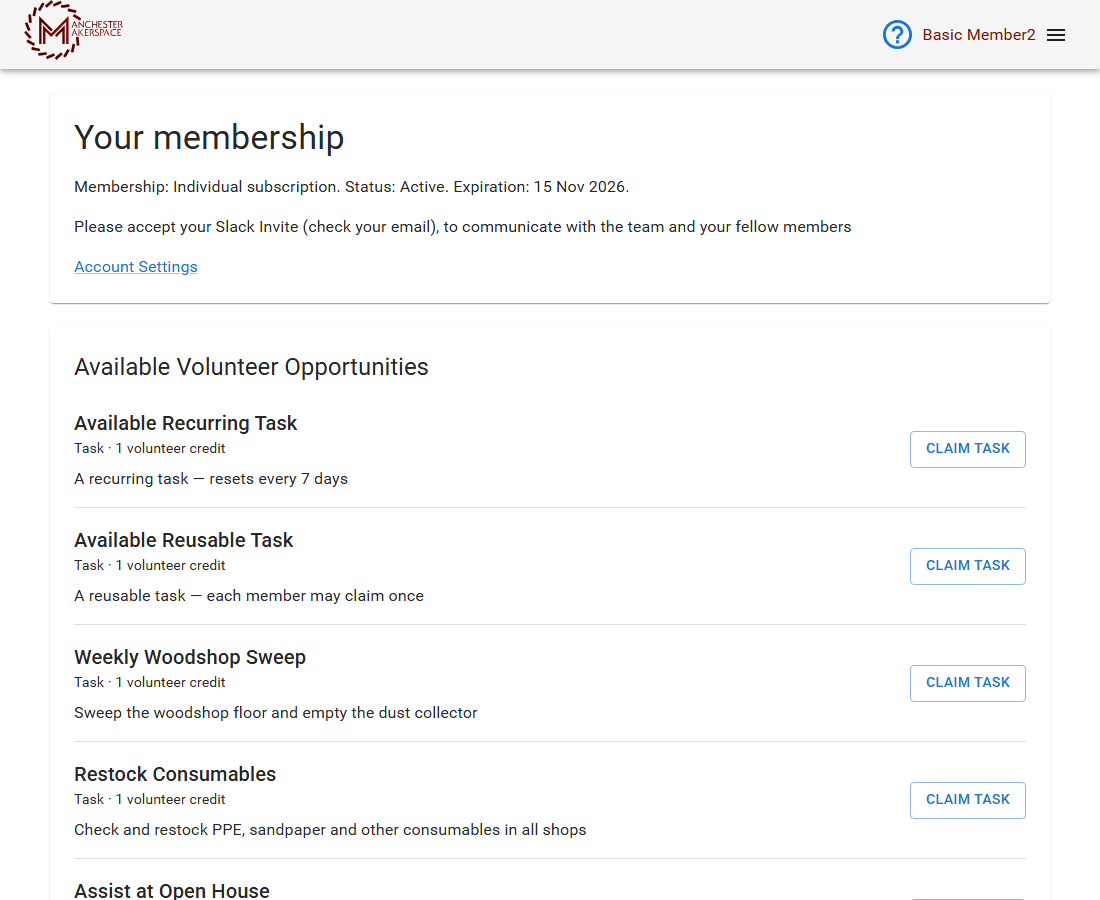
Home has four parts, from top to bottom.
¶ Your membership
This summary shows:
- Membership: your type. Individual subscription if you pay by subscription, Earned membership if you earn your membership through volunteering, Prepaid membership if you paid up front, or No membership.
- Status: Active, Pending, Non-member, Inactive, Suspended or Revoked.
- Expiration: the date your membership runs through. It says Expired with the date once it has passed, and Awaiting activation when you have paid but your membership has not started yet.
Under it you may see a note asking you to accept your Slack invite (check your email), or a Get started with Slack link once you have accepted. Account Settings opens your settings, where you manage your subscription, payment methods and security.
¶ Available Volunteer Opportunities
Tasks and events you can take part in to help run the makerspace. Volunteer activities earn points, and each opportunity shows what it is worth (the portal labels this "volunteer credit"). Use Claim Task to take a task, or Join Event to sign up for an event. When you finish a task, mark it complete in the Volunteer tab on your profile. Points are added after the work is reviewed.
¶ Available safety checkouts
The tools you can ask to be checked out on. Each shows the tool and its shop, any note from the shop's Resource Manager, and a Request Safety Checkout button. See Request a Tool Checkout.
¶ Open unpaid invoices
Anything you owe that is currently due, with Pay to pay it and View to see the details. If it says No unpaid invoices are currently due, you are up to date. A subscription invoice shows Manage Subscription instead of Pay.
¶ If you just joined
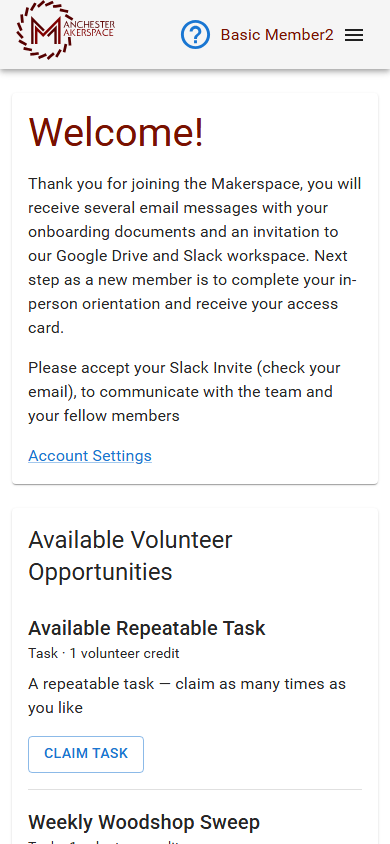
After you register, the Home page opens with a Welcome! message. It reminds you to check your email for your onboarding documents and your invitations to Google Drive and Slack, and tells you the next step: complete your in-person orientation and receive your access card. See New Member Orientation. Your membership time starts when you receive your key fob, not when you pay, so you do not lose any membership time while you wait. If there is a long gap between paying and getting your fob, your billing date and your membership expiration date will not match. That is normal.
¶ The menu
Open the menu with the three lines at the top right, next to your name.
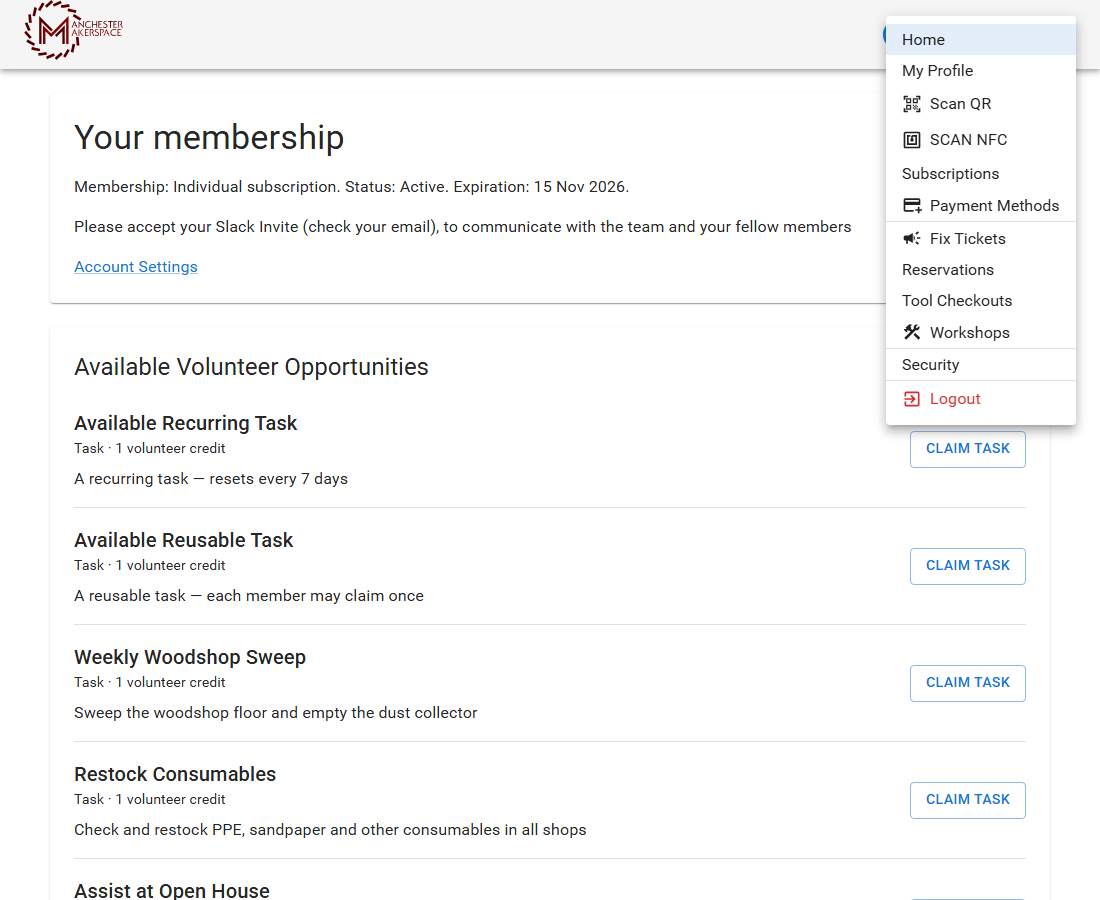
| Menu item | What it does |
|---|---|
| Home | This page. |
| My Profile | Your profile, with tabs for Dues, Rentals, Checkouts, Reservations, Payment History, Volunteer and Check-in Activity. Your rentals are covered in Rent a Storage Space. |
| Scan QR | Opens your camera to read a QR code on a tool or rental space and jump to its page. Allow camera access when asked. Scanning only opens the page: it never submits a request or payment. |
| Scan NFC | Reads a key fob or tag with your phone. Available on Android phones only. |
| Subscriptions | Manage your membership subscription. See Manage Membership. |
| Payment Methods | Add or remove a card or other payment method. |
| Fix Tickets | Report something broken, and follow repairs. |
| Reservations | Reserve a shop or tool. |
| Tool Checkouts | Request a checkout and see what you are checked out on. See Request a Tool Checkout. |
| Workshops | Each shop's page, with its tools, reservations and documentation. |
| Security | Your password and second sign-in step. |
| Logout | Signs you out. |
Some items may not appear, depending on how the makerspace has set up the portal.
¶ Staff menus
Board members, Resource Managers and admins see more menu items than members do, depending on their role. Those are covered in the admin and resource manager sections of this wiki. If you expect a menu item and do not see it, ask a board member to check your role.
¶ If something looks wrong
| What you see | What to do |
|---|---|
| Your status says Pending or Inactive | Come to an open house to get your orientation and key fob, or ask in #discuss-talk-to-the-board. |
| Your expiration date is wrong, or says Expired | Check Subscriptions under the menu. If your subscription lapsed, renew it. Otherwise ask the board. |
| The page says it could not load | Use the Retry button. If it keeps failing, sign out and back in. |
| Please accept your Slack invite will not go away | Open the Slack invitation in your email and accept it. Ask the board if you cannot find it. |
| A menu item you were told about is missing | Some items depend on your role. Ask a board member. |